


It will take a minute for you to find many clips of people losing saved progress in GTA 6, hours into the game, completing multiple missions. It’s the roughest thing to deal with in any game, as you will start from scratch, watching all the cutscenes over again. To make sure that doesn’t happen in your experience with Grand Theft Auto 6, you must save manually throughout the game.
While the autosave feature is functional and working in the game, many players also reported that autosaves stopped working at a certain point. This guide is all about how to save in GTA 6 and the best way to avoid losing progress and many of the save-related issues in the game.
How to Manually Save Your Game Progress in GTA 6
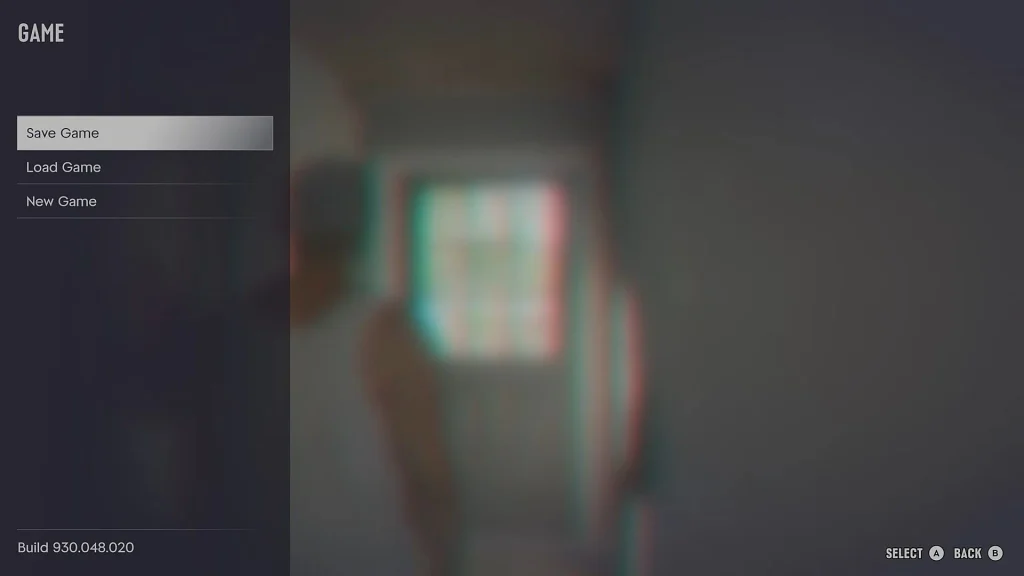
Just pause the game (Pressing the Options or Menu button on PS or Xbox), then choose the Game icon, right below the Map, and you will get Save Game/ Load Game/ New Game options. That’s it; once you select Save Game, you can save to any slot. Do note that saving this way will be considered a manual save; the game also features autosave after completing major mission milestones, key story events, or significant purchases.
- #1| First, pause the game
- #2| Select Game from the menu, right below Map.
- #3| Press Save Game to save your progress.
Choose an empty slot to save your progress. If you want to load it, then you can also head to the Game menu and instead of Save Game, choose Load Game to load back the older save. Manual save will not replace the auto save file; same goes the other way around.
Important Tip: If you load an old manual save file and do some missions, it will overwrite the Auto Save file.
If the Save Game option is grayed out, this means you are in the middle of a mission; there are certain scenes where the game doesn’t allow you to save. Being part of an already running mission is one of them; make sure to complete the mission, or abandon it to see the Save Game icon again. As long as your character is in the open world without doing any quests, you will get to make a manual save.
Note: You will not see the Auto Save option in all missions; it’s only tied to some missions and events. If you are currently in a mission and want to check your save progress, you can check the Load Game option to see your recent save details.
When you are playing the prologue, you are not allowed to save during the opening sequence; you must complete the entire prologue to get the manual save. The system for manual saving unlocks when you arrive at Jason’s house after completing Brian’s first job. Currently, you are allowed to make 15 manual save slots in the game; one of the slots is for autosave, and the rest can be used to make manual saves.
Always Manual Save for Mission Replay
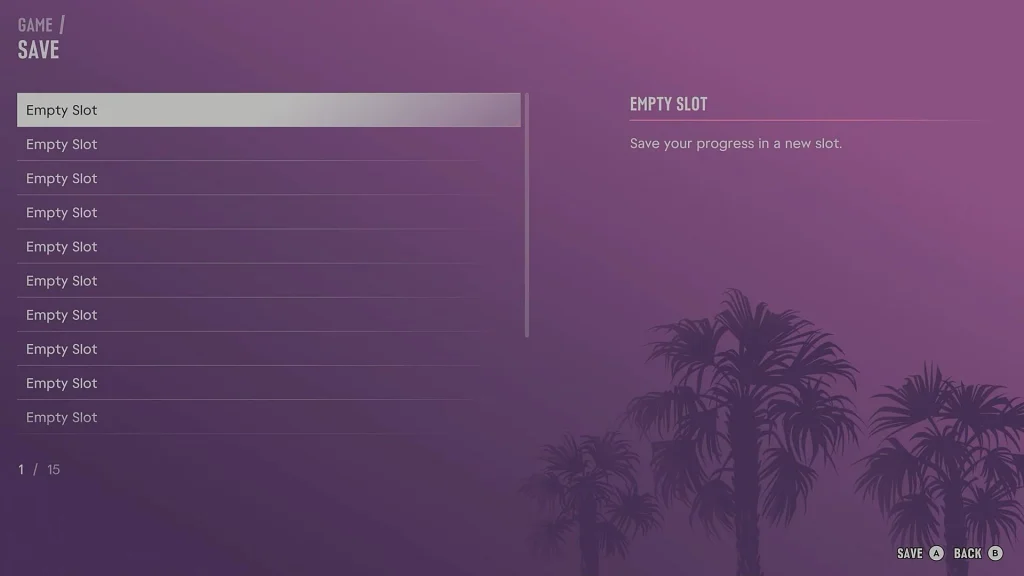
Some players might be tempted to repeat the same mission, but be warned: it will replace the Auto Save file. If you plan to repeat a mission, make a manual save (as a backup), then launch the older save file to replay it. Doing so will replace the Auto Save file, but at least you will have the backup save to go back to after replaying the older mission.
I will recommend not putting too much faith in the auto-save feature; manual save is the best way to avoid most of the save-related issues plaguing GTA 6’s launch. Don’t just turn off the game without saving, or you will lose progress. GTA 6’s Auto Save feature is not reliable; manual saving is the best way to deal with the game.
