




Heroes of Might and Magic Olden Era, as you can easily guess, brings dozens of features that are a bit more than a simple understanding of the game and keys associated with each one. While it may seem a bit overwhelming, the game is well designed, and the default options for every setting are set out quite well. The guide will focus on the changes that you can make to some of the options to make the Heroes of Might and Magic Olden Era a bit more immersive.
All Settings in Heroes of Might and Magic Olden Era
We are going to cover the key setting details under General/ Readability/ Video/ Audio/ and Hot Keys. Each setting holds a good amount of options to tweak the game to function your way.
General Settings
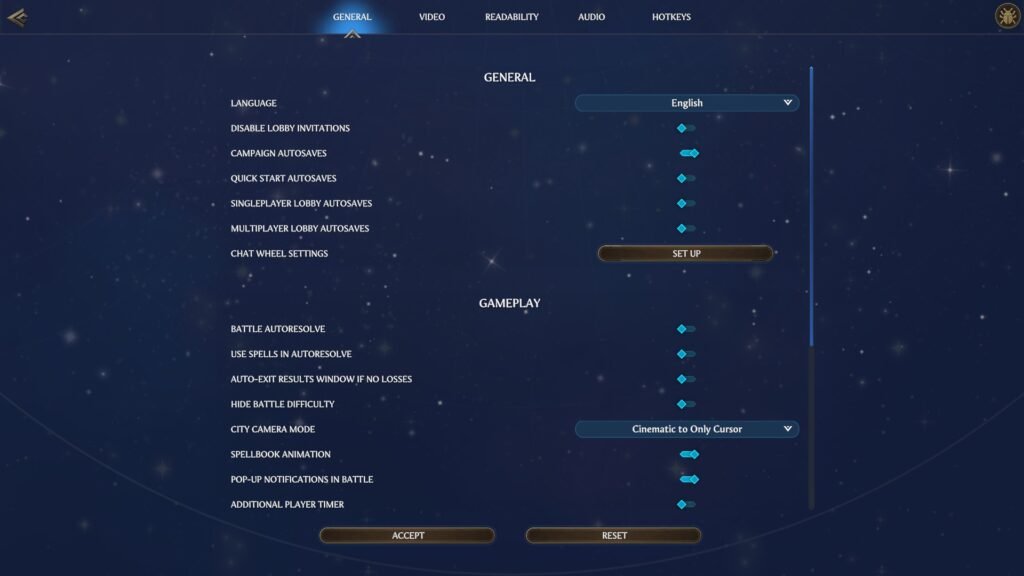
Head under the General settings here, tick on
- Campaign Autosaves/ Quick Start Autosaves/ Singleplayer Lobby Autosaves/ Multiplayer Autosaves.
Gameplay:
- Battle Autoresolve: Off
- Use Spells in Autoresolve: Off
- Auto-Exit Results window if no losses: Off
- Hide battle difficulty: Off
I will recommend leaving these settings off at the beginning. Once you get the hang of the game, you can turn them on later.
- Spellbook animation: On
- Pop-up notifications in battle: On
- Show stacks move range hover: On
An interesting option here is City Camera Mode. If you don’t like the slow-moving cutscene when you enter a city, you can turn that off by choosing Static or Cinematic to Static or choosing Only Cursor.
Video Settings
Most of it will be personalized to your device, but I will recommend switching the Anti-aliasing to TAA or SMAA. Other than that, feel free to tweak the settings to fit the game to your system. If your system can handle the pressure, then crank the Maximum FPS to 360.
But if your PC is sitting on the lower end, then turn off Anti-Aliasing and lower the Textures and Shadows. The last resort here would be to change the Resolution. But that should be treated as a last resort; until then, keep on lowering most of the settings to see if you are getting a decent FPS for your game.
Readability Settings
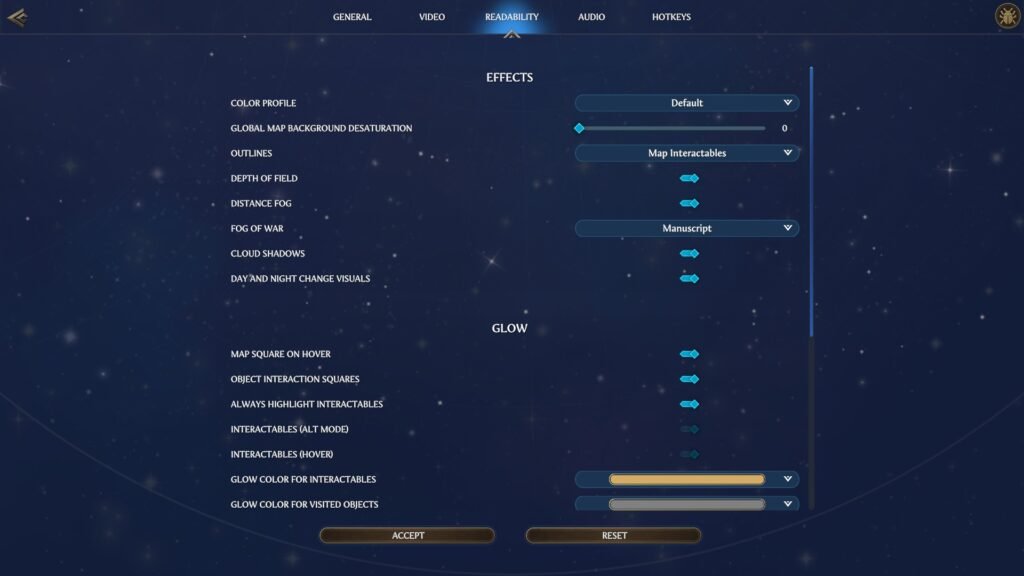
Color Profile
It’s a personalized option; this setting basically puts a filter over your game. If you are playing at night, choosing Dark would make sense, but if you want the colorful appearance, then change the setting to Saturation. Or if you don’t want to mess with any of it, then simply leave the setting to default.
- Outlines: Map Interactions
- Cloud Shadows: On
- Depth of Field: On
- Fog of War: Manuscript
- Day and Night Change Visuals: On
Glow
- Map square on hover: On
- Object Interaction Squares: On
- Always Highlight Interactable: On
Here, turn on Always Highlight Interactable. It allows the game to apply highlight glow to every interactable object. If you are new to the game, the last thing you want to do is miss things. This option will allow you to keep track of everything on the screen.
- Interactables (Alt Mode): On
- Interactables (Hover): On
Lastly, you have the option to change colors for glow, pick the one that meets your personalized favorites.
Battles
- Alternative Battle Camera Position: Position 0
You can pick what suits your playstyle rather than having to go with the default angle.
- Highlight Stack: On
- Highlight Active Stack: On
- Highlighted Stack Glow: Off
- Show Stacks Through Objects: On
- Stack Hex Color Indicator: On
Audio Settings
While most of the options here are basic, as they cover the UI, SFX, Music, and lastly the Master sound control, the unique addition here is the Mute Sound When Minimized. If you do like the game to be in the background a lot, then turn Mute Sound When Minimized on.
Hot Keys Settings
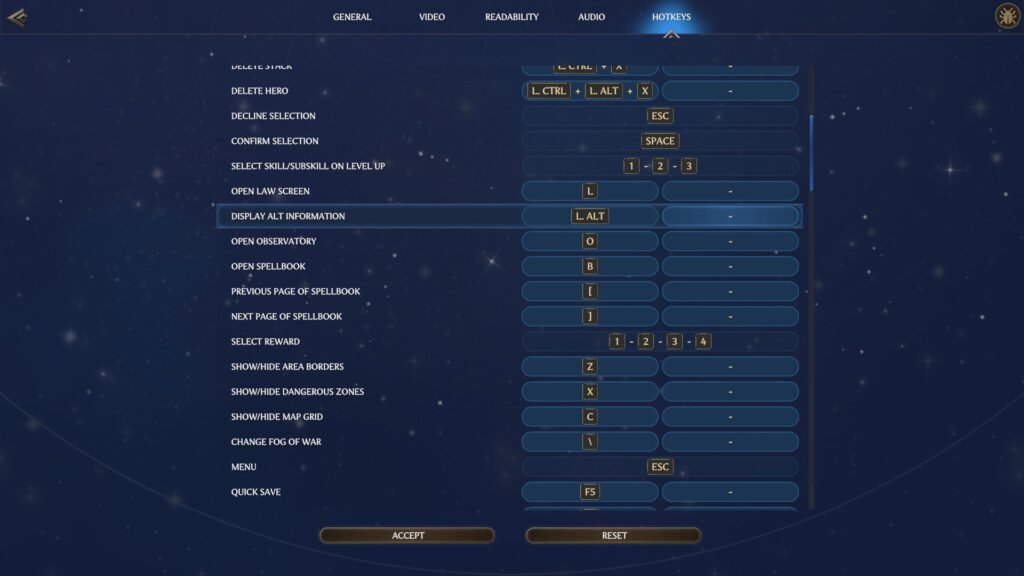
The game does an amazing job setting up perfect Hot Keys for most of the game’s features. Here we are going to tinker a little bit to make it better.
- Camera Movements
I will recommend going with WSAD for the camera movement.
- W for Camera Move Up
- S for Camera Move Down
- A for Camera Move Left
- D for Camera Move Right
It’s pretty bare-bones, a classic layout for any modern game.
- Zoom In/ Out: Mouse Wheel Up and Down
- Display Alt Information: By default, it is set to L. ALT, but you can choose a button that is closer to the WSAD.
- End Turn: The default key for End Turn is E, which lands the key on the accidental territory. So if you don’t want to mistakenly press E to finish your turn, change it to something else.
- Recruit All: Change the key to P to a familiar key.
That’s about it for the setting options. Again, most of the settings open up a greater level of customization. You can make changes to most of the settings to play Heroes of Might and Magic Olden Era, your way.
