

Close Menu
GamesHorizonGamesHorizon
  • News
  • Guides
  • Reviews
  • Features
  • Platforms
    • PC
    • PS5
    • Xbox Series S
    • Nintendo
    • PS4
    • Xbox One
  • Anime
  • Game Hubs

Subscribe to our Newsletter

Get the latest gaming news, guides and reviews from GamesHorizon to your INBOX!

WHAT'S HOT
ARK: Survival Ascended Tame Tidepup Tides of Fortune

Tidepup In ARK: Survival Ascended – How to Find, Tame & Evolve

July 6, 2026
A warrior looking down from a bridge in Path of Exile 2

Path of Exile 2 Guides Hub

July 6, 2026
featured

Crimson Desert 1.13 – All New Damiane Armor Locations & Stats

July 6, 2026
Facebook X (Twitter) Instagram Pinterest
  • Starfield
  • REPLACED
  • Alabaster Dawn
  • Outbound
  • The Adventures of Elliot
  • Path of Exile 2
GamesHorizonGamesHorizon
  • News
    Aceles or Mircobe in Starfield

    Starfield’s performance on PS5 leads to players demanding refunds

    April 13, 2026
    A Rockband poster with someone playing a guitar in front of others playing instruments

    Rock Band 4 Is Getting Delisted This Month

    October 1, 2025
    Xbox Series X and Series S placed together on a table.

    Microsoft’s Website Crashes as Gamers Boycott Xbox Pay Everywhere Over 50% Price Hike

    October 1, 2025
    Ubisoft’s New ‘Vantage Studios’ Gives Its Franchises to the Guy Whose Last Gig Was an Anime Avatar AI/NFT Startup - - News | | GamesHorizon

    Ubisoft’s New ‘Vantage Studios’ Gives Its Franchises to the Guy Whose Last Gig Was an Anime Avatar AI/NFT Startup

    October 1, 2025
    Fortnite Peacemaker doing a nazi symbol

    Fortnite Removed an Emote for Racist Origins

    September 29, 2025
  • Guides
    ARK: Survival Ascended Tame Tidepup Tides of Fortune

    Tidepup In ARK: Survival Ascended – How to Find, Tame & Evolve

    July 6, 2026
    featured

    Crimson Desert 1.13 – All New Damiane Armor Locations & Stats

    July 6, 2026
    Delta Force All Keycard Locations New Map AZ3

    All Keycards Location of AZ3 New Map in Delta Force

    July 4, 2026
    Path of Exile 2 Monastery of the keepers Location Area with Genesis Tree

    Path of Exile 2: Everything You Need to Know About Grasping Orchid

    July 4, 2026
    game end

    Supermarket Chaos – Storage Tips & How to Deal with Limited Space

    July 4, 2026
  • Reviews
  • Features
    Assassin's Creed Black Flag Resynced Feature Image

    Assassin’s Creed Black Flag Resynced: All New Additions to the Game

    June 30, 2026
    Starfield Feature Image

    Everything Added to Starfield since Launch

    April 7, 2026
    An overview of the scenery in Dying Light The Beast

    Where Does Dying Light The Beast Take Place?

    September 15, 2025
    First-person combat showcased in Borderlands 4, highlighting its vibrant weapon designs and firefights.

    Borderlands 4 Needs to Have These Features From Borderlands 3

    September 10, 2025
    A screenshot from the games Ender Lilies: Quietus of the Knights, Bō: Path of the Teal Lotus, and Hollow Knight

    Best Games Like Hollow Knight Silksong

    September 9, 2025
  • Platforms
    • PC
    • PS5
    • Xbox Series S
    • Nintendo
    • PS4
    • Xbox One
  • Anime
    Smiling Statue In Solo Leveling, Explained and Answered

    Solo Leveling Statue Smile Explained: The Cruel Creator, System Blueprints, and Season 3 Secrets

    May 26, 2026
    All About Baruka In Solo Leveling

    All About Baruka In Solo Leveling

    March 21, 2024
    9 Strongest Mashle Characters, Ranked

    9 Strongest Mashle Characters, Ranked

    March 21, 2024
    Mashle Season 2 Episode 11 Release Date Details

    Mashle Season 2 Episode 11 Release Date, Time, And Where To Watch

    March 20, 2024
    Solo Leveling Episode 11 Expectations

    Solo Leveling Episode 11: Release Date, Time, And Where To Watch

    March 20, 2024
  • Game Hubs
GamesHorizonGamesHorizon
Home»Guides
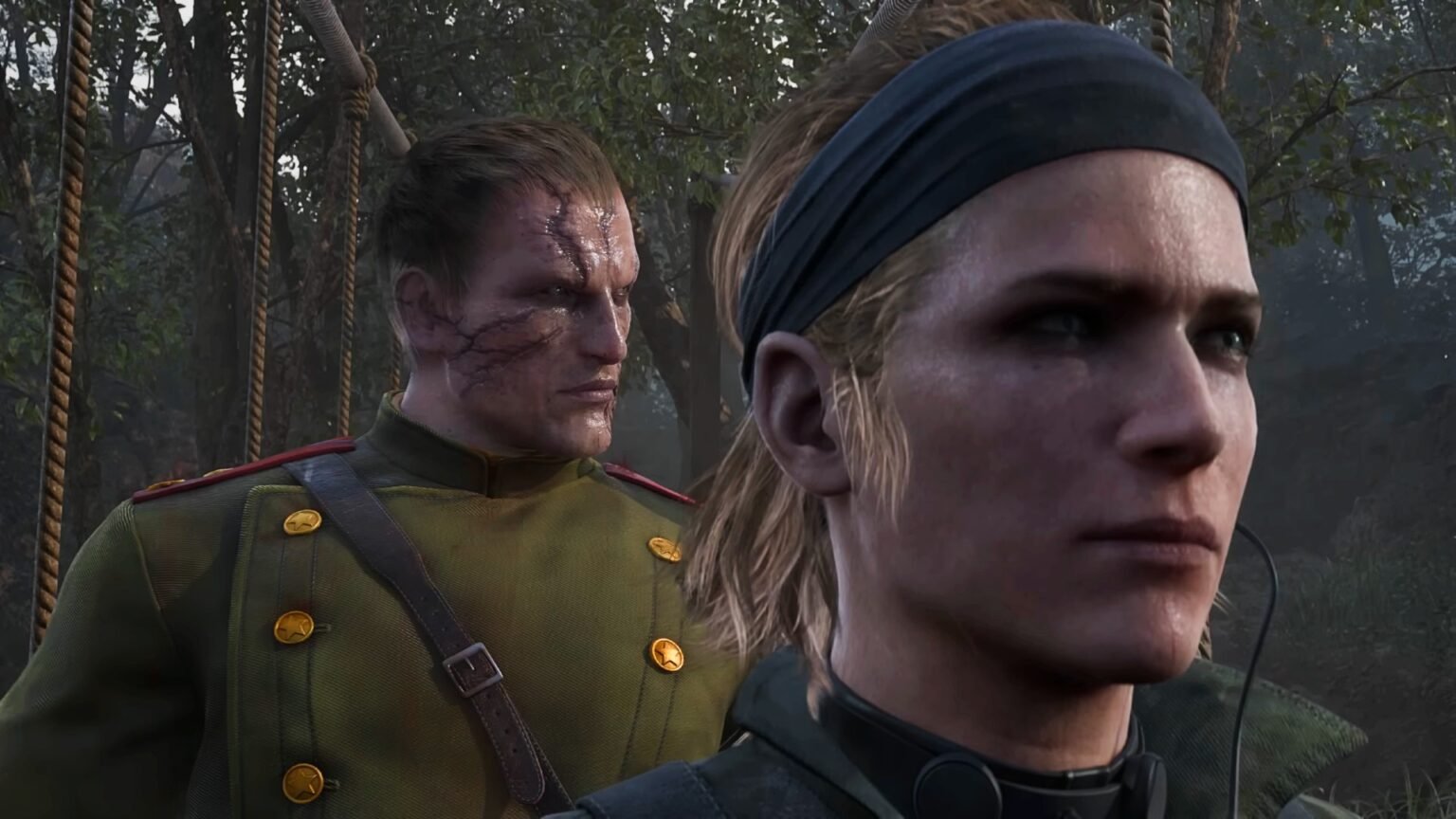
The boss in front of Volgin in Metal Gear Solid Delta Snake Eater
KONAMI

How to Disable FPS Lock in Metal Gear Solid Delta

Jorge AguilarBy Jorge AguilarUpdated:August 27, 20256 Mins Read Guides August 27, 2025
SHARE
Facebook Twitter Reddit WhatsApp Telegram Tumblr

Unlocking higher frame rates in Metal Gear Solid Delta: Snake Eater, beyond the initial 60 FPS cap, involves a few technical adjustments, particularly for PC players. This restriction is likely a holdover from the original game’s engine physics being tied to frame rate.

This restriction can be bypassed through community-developed patches and manual configuration file edits. You’d be surprised by all the ways you can get past this restriction.

How to Unlock Higher Frame Rates in Metal Gear Solid Delta: Snake Eater
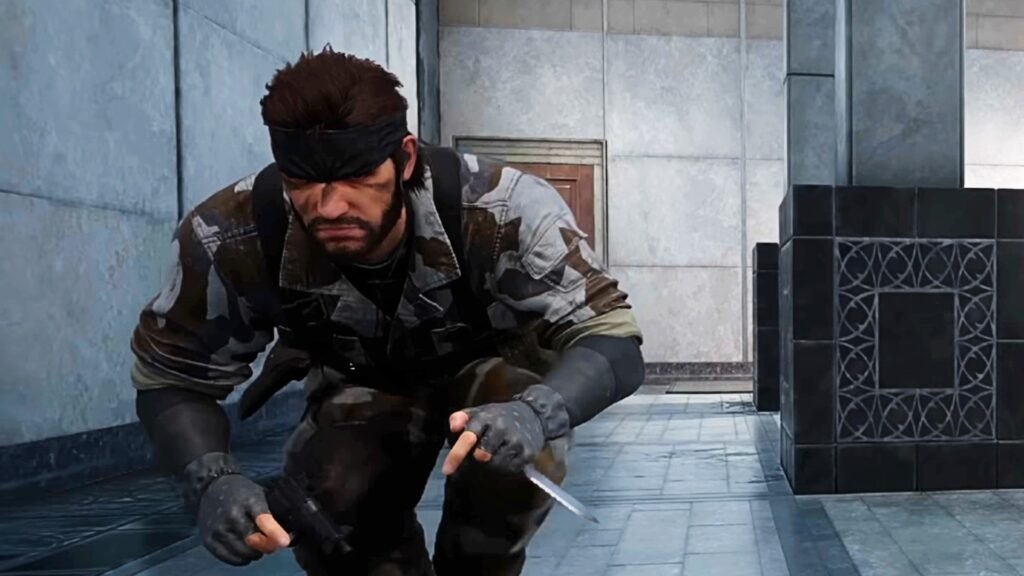
Naked Snake Sneaking in Metal Gear Solid Delta Snake Eater
KONAMI

One common method for unlocking frame rate in Metal Gear Solid Delta: Snake Eater involves using a tool like UE4SS (Unreal Engine 4/5 Scripting System) with a compatibility fix. This process begins by downloading a specific “ZDEV” build of UE4SS from a platform like GitHub. Once downloaded, the UE4SS files need to be extracted into the game’s binaries folder, typically found within the steamapps\common\MGSDelta\MGSDelta\Binaries\Win64 directory.

After UE4SS is installed, a custom mod structure must be created. This involves making a folder named UncapFPS/scripts inside the UE4SS/Mods directory. Within this scripts folder, a main.lua script is placed, containing code that hooks into the game’s settings to disable VSync and set the frame rate limit to zero, effectively uncapping it. Finally, the mod needs to be activated by editing mods.txt and mods.json in the Mods folder to enable the UncapFPS mod.

As a supplementary or alternative measure, players can also directly edit the Engine.ini file. This file is located in the user’s AppData\Local\MGSDelta\Saved\Config\Windows directory. By adding specific lines under [SystemSettings] and [/script/engine.engine], such as t.MaxFPS=0, t.AllowFrameRateSmoothing=0, r.VSync=0, rhi.SyncInterval=0, bSmoothFrameRate=False, MinSmoothedFrameRate=0, and MaxSmoothedFrameRate=0, the game’s internal frame rate smoothing and VSync settings are overridden, allowing for higher frame rates.

Another method, simpler but potentially less comprehensive, involves editing the GameUserSettings.ini file in the same Windows folder, locating the FrameRateLimit entry, and changing its value from 60 or 30 to 120. It’s crucial to save these configuration changes and ensure the file isn’t set to read-only.

While these methods effectively remove the frame rate cap, it’s important to note that developers intentionally lock the game at 60 FPS. Unlocking it might introduce unforeseen bugs or instability, as the game has not been thoroughly tested at higher frame rates. Konami is using this game to train the next Kojima, so it had a lot on its plate.

How to Use Lyall’s Patch for Higher Frame Rate in MGS Delta: Snake Eater
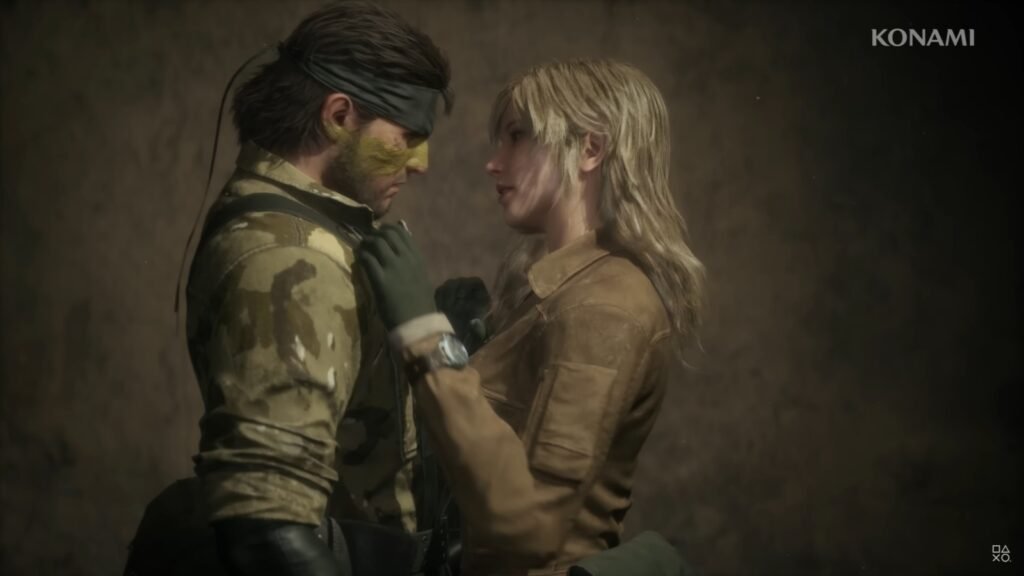
A screenshot of Snake and Eva in Metal Gear Solid Delta
Image via Konami

There’s a patch out there for Metal Gear Solid Delta: Snake Eater that can fix a huge problem for PC gamers. This patch, created by a community member named Lyall, not only removes the frame rate cap but also adds ultrawide support, which is a huge deal for anyone with a high-refresh-rate monitor and a powerful PC.

To get started, you’ll need to download the latest release of the patch. As of right now, that’s version 0.0.2. You can find the zip file, which is called MGSDeltaFix_0.0.2.zip. Once you have it, you’ll need to extract it to a specific folder inside your game’s installation directory. The path you’re looking for is usually steamapps\common\MGSDelta\Binaries\Win64. Just make sure the patch files are in that folder so the game can see them.

After you’ve extracted the files, there’s one more important step. Find the file named MGSDeltaFix.ini in the new patch folder you just created. Open it up with a text editor like Notepad. You’ll see a section called [Uncap Framerate]. Underneath that, change the value of Enabled from false to true. That’s all you need to do. Save the file and close it.

Now, the next time you launch Metal Gear Solid Delta: Snake Eater, the frame rate should be unlocked. If you run into any problems, you can always go back into the MGSDeltaFix.ini file and set the Enabled value back to false.

How to Edit gameusersettings.ini in MGS Delta
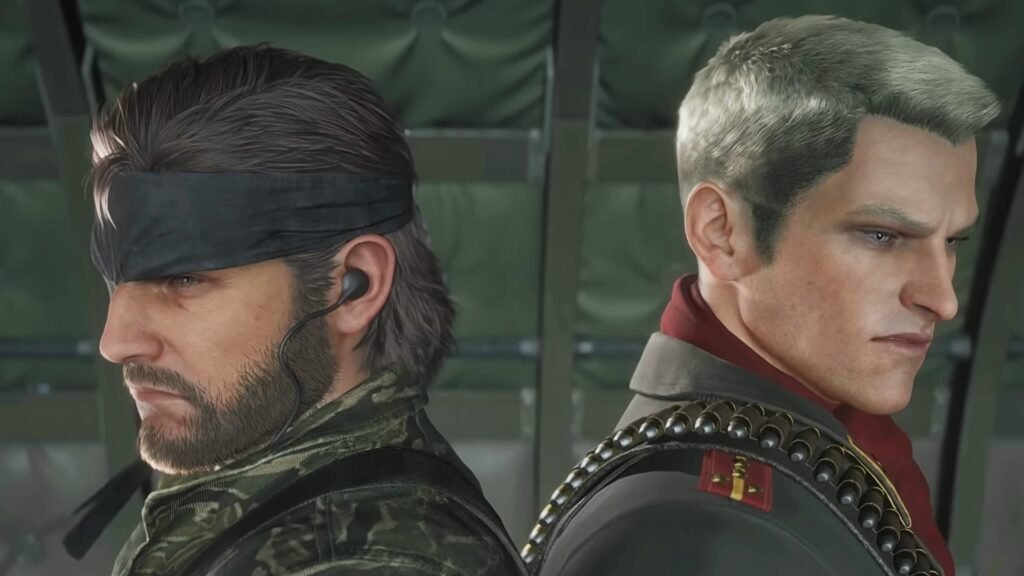
Naked Snake and Revolver Ocelot standing back to back in Metal Gear Solid Delta Snake Eater
Sirloin

If you want to edit the gameusersettings.ini file in Metal Gear Solid Delta to change settings like the FPS cap, you’ll need to find it in the game’s installation directory. The whole process is just about digging through a few folders to get to the file and then making a few changes using a text editor.

First, you need to get to your AppData folder. The quickest way to do this is to open the Run dialog by pressing the Windows key + R, then type %appdata% and hit Enter. This will land you in the Roaming folder inside AppData. From there, you just need to go back one level to the main AppData folder and then into the Local folder. Inside Local, you should see a folder called MGSDelta, which is where the game keeps its local config and save data.

Inside the MGSDelta folder, go to Saved, then Config, and finally the Windows folder. This is where you’ll find the gameusersettings.ini file. It’s a good idea to back up this file by copying it somewhere else before you make any changes, just in case something goes wrong. This way, you can easily restore the original settings.

Now, right-click on gameusersettings.ini, select “Open with,” and choose “Notepad” or any other plain text editor. Once the file is open, scroll down to find the line that controls the frame rate limit. It’ll probably be labeled something like FrameRateLimit or t.MaxFPS. The default FPS cap is usually 60, but it might also be 30. To raise it, just change the number to whatever you want, like 120. Keep in mind it could ruin some scenes since the game was only optimized for 60, like the ladder scene.

Once you’re done editing, go to “File” and hit “Save” to apply your changes. Then, you can close the text editor. Sometimes, the file might be set to “Read-only,” which will prevent you from saving. If that happens, just right-click on gameusersettings.ini, select “Properties,” and uncheck the “Read-only” box under the “General” tab. Apply the changes and then try opening and saving the file again.

By following these steps, you can successfully modify the gameusersettings.ini file to uncap the frame rate or mess with other system settings, which could make your gameplay a lot better. Just remember that while uncapping the FPS can make things feel a lot smoother, you should still keep your PC’s abilities in mind. Super high frame rates can sometimes cause bugs or instability, especially if the game’s physics are tied to the frame rate in Metal Gear Solid Delta: Snake Eater.

Metal Gear Solid Delta
Share. Facebook Twitter Reddit WhatsApp
Jorge-Aguilar-professional
Jorge Aguilar
  • X (Twitter)
  • LinkedIn

Jorge A. Aguilar, also known as Aggy, is the current Consulting Editor. Throughout his time in the industry, he's trained over 100 writers, written thousands of articles on multiple sites, written more reviews than he cares to count, and edited tens of thousands of articles. He has also written some games published by Tales, some books, and a comic sold to Telus International.

LATEST POSTS

ARK: Survival Ascended Tame Tidepup Tides of Fortune

Tidepup In ARK: Survival Ascended – How to Find, Tame & Evolve

A warrior looking down from a bridge in Path of Exile 2

Path of Exile 2 Guides Hub

featured

Crimson Desert 1.13 – All New Damiane Armor Locations & Stats

Delta Force All Keycard Locations New Map AZ3

All Keycards Location of AZ3 New Map in Delta Force

Path of Exile 2 Monastery of the keepers Location Area with Genesis Tree

Path of Exile 2: Everything You Need to Know About Grasping Orchid

game end

Supermarket Chaos – Storage Tips & How to Deal with Limited Space

Delta Force Season 10 AZ3 Secret Room

Delta Force Season 10 – AZ3 Secret Room Location

game poster

Supermarket Chaos – How to Get & Use Stars

Path of Exile 2 Raven-Touched shard Feature Image

Path of Exile 2- How to Get the Raven-Touched Shard (& What to do with it)

Diablo 4 Legendary Aspects Farming featured image

Best Farming Method for Legendary Aspects in Diablo 4 Season 14

FOLLOW US
  • Facebook
  • Twitter
  • Instagram
  • Pinterest

Subscribe to our Newsletter

Get the latest gaming news, guides and reviews from GamesHorizon to your INBOX!

MOST READ
15 Best Game Trilogies Of All Time, Ranked - - News | | GamesHorizon
15 Best Game Trilogies Of All Time, Ranked
RPG genre
The Best RPGs Of All Time – Updated For 2025
30 Best PS5 Games To Play In 2025 - - News | | GamesHorizon
30 Best PS5 Games To Play In 2025
40 Best PS4 Games You Shouldn't Miss (Ranked) - - News | | GamesHorizon
40 Best PS4 Games You Shouldn’t Miss (Ranked)
All rights reserved. Copyright © 2023 GamesHorizon.
  • About Us
  • Editorial Standards
  • Privacy Policy
  • Terms and Conditions
  • Contact Us

Type above and press Enter to search. Press Esc to cancel.

GamesHorizon
Powered by  GDPR Cookie Compliance
Privacy Overview

This website uses cookies so that we can provide you with the best user experience possible. Cookie information is stored in your browser and performs functions such as recognising you when you return to our website and helping our team to understand which sections of the website you find most interesting and useful.

Strictly Necessary Cookies

Strictly Necessary Cookie should be enabled at all times so that we can save your preferences for cookie settings.

Analytics

This website uses Google Analytics to collect anonymous information such as the number of visitors to the site, and the most popular pages.

Keeping this cookie enabled helps us to improve our website.